
OnePlus TV Remote Not Pairing After Reset? Quick Fixes & Repair in Hyderabad
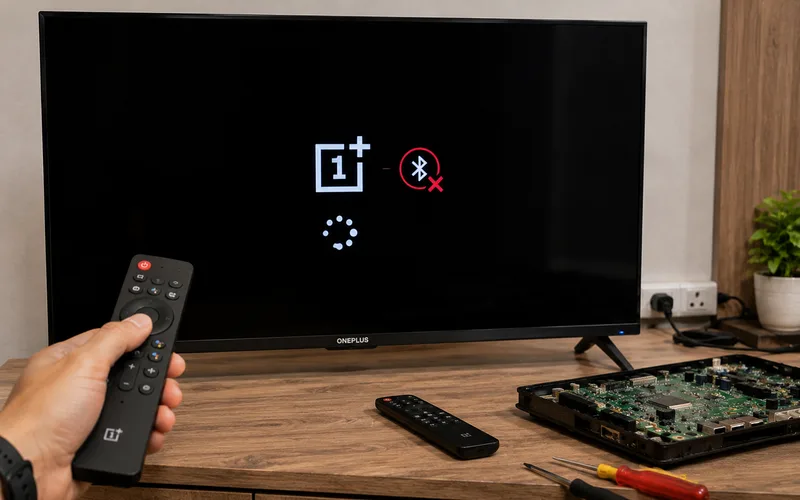
Did you reset your OnePlus TV and now the OnePlus TV remote is not pairing? If the remote worked before the reset but the TV no longer responds to it, the Bluetooth pairing information may need to be set up again.
This is a common situation with Bluetooth-enabled OnePlus TV remotes because the remote needs to communicate with the television after the TV’s settings or paired-device information has been reset.
For customers searching for “OnePlus TV remote not pairing after reset” or “OnePlus TV remote”, the good news is that a pairing problem does not automatically mean that the remote or TV motherboard has failed.
In many cases, you can try the pairing procedure again. If the remote still cannot connect after the basic steps, the problem may require further diagnosis.
If you’re in Hyderabad, this guide explains how to pair the OnePlus TV remote again, what to check when pairing fails, and when professional TV repair may be necessary.
Why Is My OnePlus TV Remote Not Pairing After Reset?
A factory reset can remove saved settings and paired-device information.
After the reset, your OnePlus TV may therefore require the remote to be paired again.
Other possible reasons include:
- Remote pairing information was removed
- Remote is not in pairing mode
- Remote is too far from the TV
- Remote batteries are weak
- Another Bluetooth device is interfering
- TV Bluetooth software is temporarily unresponsive
- Remote hardware has a problem
- TV Bluetooth-related hardware has a problem
- Mainboard-related fault
The exact cause depends on what happens when you try to pair the remote.
How to Pair a OnePlus TV Remote After a Reset
The exact button combination can vary between OnePlus TV remote models.
For example, OnePlus’ community documentation for the OnePlus TV Y1S/Y1S Edge says the remote can be paired through:
Settings → Remotes & Accessories → Remote Control → Add remote control
It then instructs users to hold the OK and HOME buttons simultaneously until pairing starts, keep the remote close to the TV, and complete the pairing process shown on the TV screen.
An earlier OnePlus Y-series remote guide uses a different combination—Left + Home—which is why you should use the procedure appropriate for your exact remote and TV model rather than assuming every OnePlus remote uses the same buttons.
General pairing process
- Turn on the OnePlus TV.
- Open the TV’s remote/Bluetooth settings if you can navigate them.
- Select the option to add a remote or Bluetooth accessory.
- Put the remote into pairing mode using the button combination specified for your model.
- Keep the remote close to the TV.
- Wait for the remote to appear on the TV.
- Select it and complete pairing.
OnePlus’ documentation for the Y1S/Y1S Edge specifically recommends keeping the remote within about 50 cm of the TV during pairing.
OnePlus TV Remote Not Pairing? Try These Quick Fixes
If the remote isn’t detected, don’t immediately assume it is damaged.
Try these steps in order.
1. Replace the Batteries
Weak batteries can prevent the remote from entering or maintaining Bluetooth pairing mode.
Install fresh batteries and try the pairing procedure again.
2. Keep the Remote Close to the TV
During pairing, keep the remote close to the television.
OnePlus’ Y1S/Y1S Edge pairing instructions specifically recommend keeping the remote within approximately 50 cm of the TV during pairing.
Don’t try to pair it from another room.
3. Restart the TV
If possible:
- Turn off the TV.
- Disconnect the power.
- Wait briefly.
- Reconnect it.
- Turn the TV on.
- Try pairing the remote again.
A restart can sometimes clear a temporary Bluetooth or software problem.
4. Remove Other Bluetooth Devices
If the TV has other Bluetooth accessories connected, disconnect or remove unnecessary devices before trying to pair the remote.
The goal is to make the pairing process as simple as possible.
5. Check Whether the TV Detects the Remote
Go to the relevant Bluetooth/remote settings and check whether the OnePlus remote appears in the available-device list.
If the remote appears but pairing fails, the problem may be different from a remote that isn’t detected at all.
OnePlus TV Remote Appears but Won’t Pair
This situation is worth paying attention to.
Suppose the TV detects:
OnePlus RC
but selecting it doesn’t complete the pairing process.
Possible causes can include:
- Temporary Bluetooth software issue
- Previous pairing information
- Remote communication problem
- TV Bluetooth subsystem problem
- Other software issues
Try restarting the TV and repeating the pairing process.
If the problem continues, further diagnosis may be required.
OnePlus TV Remote Is Not Showing in Bluetooth Devices
If the remote doesn’t appear at all, check:
Battery
Install fresh batteries.
Pairing mode
Make sure you’re using the correct pairing procedure for your remote model.
Distance
Keep the remote close to the TV.
TV Bluetooth
Check whether other Bluetooth accessories can be detected by the TV.
Remote hardware
If the remote cannot enter pairing mode or is not transmitting correctly, it may need inspection or replacement.
OnePlus TV Remote Works but Voice Control Doesn’t
Some OnePlus TV remotes use Bluetooth to support functions such as voice control.
OnePlus’ Y1S/Y1S Edge documentation specifically describes Bluetooth pairing as enabling Bluetooth and voice-control functionality.
So if the basic buttons work but Bluetooth/voice functionality does not, the remote may not be fully paired.
Check the Bluetooth pairing status rather than assuming the remote is completely defective.
OnePlus TV Remote Not Working After Factory Reset
A factory reset can change the TV’s configuration and remove previously paired devices.
This means the remote may need to be paired again.
If the TV is asking you to complete setup
Follow the setup process displayed on the screen.
If you can reach:
Settings → Remotes & Accessories
you can use the TV’s Bluetooth settings to add the remote.
For some OnePlus TV models, the remote pairing option is available under the Remotes & Accessories section.
What If I Can’t Navigate the TV Without the Remote?
This can make the situation more difficult.
If the TV has no working remote and is waiting for Bluetooth pairing, you may need an alternative way to navigate the television depending on the model.
Possible options can include:
- Compatible replacement remote
- Another supported control method
- Temporary input/navigation method supported by the TV
The available options depend on the exact OnePlus TV model.
Don’t assume that every OnePlus TV supports the same alternative control method.
OnePlus TV Remote vs IR Remote
It’s useful to understand the difference.
A traditional IR remote communicates using infrared signals.
A Bluetooth-enabled smart-TV remote can communicate wirelessly with the TV after pairing.
This means a Bluetooth remote can behave differently from a basic infrared remote.
If the remote isn’t paired
Some functions may not work as expected.
If the remote is properly paired
Bluetooth-supported functions can operate normally.
This is why a remote that worked perfectly before a factory reset may suddenly require pairing again afterward.
Is the OnePlus TV Remote Damaged?
Not necessarily.
Before replacing the remote, check:
- Batteries
- Pairing procedure
- Distance
- TV Bluetooth settings
- TV restart
- Other Bluetooth devices
- Whether the remote appears during scanning
If another compatible remote pairs successfully with the TV, the original remote becomes more likely to be the problem.
If multiple compatible remotes fail to pair, the TV itself may require further diagnosis.
When Could the OnePlus TV Have a Hardware Problem?
If the correct pairing procedure doesn’t work after basic troubleshooting, a technician may need to investigate the TV.
Possible areas can include:
- Bluetooth-related circuitry
- Mainboard
- Power-related problems
- Software/firmware
- Internal connections
However, a failed remote pairing attempt alone is not enough to conclude that the motherboard is defective.
Proper testing should come first.
OnePlus TV Remote Sensor or Motherboard Problem
Customers sometimes describe any remote problem as a “sensor problem.”
But Bluetooth pairing and infrared remote reception are not necessarily the same thing.
If your remote uses Bluetooth for pairing, a technician should determine whether the issue is actually related to:
- The remote
- Bluetooth communication
- TV software
- Mainboard
- Infrared reception, where applicable
- Another TV component
This distinction matters because replacing the wrong component can increase the repair cost without solving the problem.
When Should You Get OnePlus TV Repair?
Consider professional diagnosis when:
- The remote has fresh batteries but won’t pair.
- The correct pairing procedure doesn’t work.
- The remote never appears in the TV’s device list.
- Multiple compatible remotes fail to pair.
- The TV has other Bluetooth problems.
- The TV is restarting or freezing.
- The TV has additional power or motherboard symptoms.
- The TV has already been reset and still cannot complete setup.
If your OnePlus TV is under warranty, check the manufacturer’s support options before using an independent repair provider.
OnePlus currently provides a TV-specific repair option in India and its support system includes door-to-door TV and monitor service.
OnePlus TV Remote Not Pairing After Reset in Hyderabad
If you’ve tried the correct pairing procedure and your OnePlus TV remote is still not pairing after reset, Vee Techno Electronics can diagnose the TV and remote-related problem in Hyderabad.
Common issues we can inspect include:
- OnePlus TV remote not pairing
- OnePlus TV remote not detected
- OnePlus TV Bluetooth problems
- Remote works intermittently
- TV not responding to remote
- TV motherboard-related issues
- TV software/startup problems
- Remote sensor-related problems where applicable
Before requesting service, keep these details ready:
TV Brand: OnePlus
TV Model: ______
Screen Size: ______
Remote Problem: Not pairing / not detected / buttons not working
After Reset: Yes / No
Location: Hyderabad
A short video showing the pairing screen and remote behaviour can also help explain the issue.
What Information Should You Give the Technician?
Instead of saying only:
“OnePlus TV remote not working.”
Give more details.
For example:
OnePlus 43-inch TV — factory reset completed — remote not detected during Bluetooth pairing.
Or:
OnePlus TV — remote appears under Bluetooth devices but pairing doesn’t complete.
This helps the technician understand whether the problem occurs during device discovery or during the actual pairing process.
OnePlus TV Remote Repair vs Replacement
If the remote itself is defective, replacement may be more practical than attempting component-level repair.
If the remote works with another compatible TV or another compatible remote pairs successfully with your TV, that information can help identify where the problem lies.
For TV-side problems, the technician should diagnose the relevant hardware before recommending a motherboard replacement.
Frequently Asked Questions
Why is my OnePlus TV remote not pairing after reset?
A factory reset can remove previously saved pairing information. The remote may need to be paired again through the TV’s Remotes & Accessories settings using the pairing procedure applicable to your model.
How do I pair my OnePlus TV remote again?
On supported OnePlus TV models, go to Settings → Remotes & Accessories and add the remote. The exact button combination for pairing varies by remote/model. OnePlus documentation for the Y1S/Y1S Edge describes holding OK + HOME during pairing.
Why is my OnePlus remote not showing up?
Check the batteries, make sure the remote is in pairing mode, keep it close to the TV and restart the television. If it still doesn’t appear, the remote or TV may require further diagnosis.
How close should the OnePlus remote be during pairing?
For the Y1S/Y1S Edge, OnePlus recommends keeping the remote within approximately 50 cm of the TV during pairing.
Does every OnePlus TV remote use the same pairing buttons?
No. OnePlus community documentation shows different pairing instructions for different TV/remote generations—for example, OK + HOME for the Y1S/Y1S Edge and Left + Home in an earlier Y-series guide. Use the procedure applicable to your model.
Does a failed pairing mean the OnePlus TV motherboard is damaged?
No. The problem can be related to the remote, batteries, pairing process, software or Bluetooth communication. Motherboard diagnosis should only be considered after basic troubleshooting.
Can I use a replacement OnePlus TV remote?
A compatible replacement may work, but compatibility depends on the TV model and remote. Confirm compatibility before purchasing.
Where can I get OnePlus TV repair in Hyderabad?
Vee Techno Electronics provides TV repair services in Hyderabad. If your TV is still under applicable manufacturer warranty, you can also check OnePlus’ official TV repair and support options.
Final Takeaway
If your OnePlus TV remote is not pairing after a reset, don’t immediately buy a new remote or replace the TV motherboard.
Start with:
Fresh batteries → correct pairing procedure → keep remote close → restart TV → check Remotes & Accessories → test again.
Remember that the pairing button combination varies by OnePlus TV/remote model. OnePlus documentation for the Y1S/Y1S Edge uses OK + HOME, while an earlier Y-series guide uses Left + Home.
If the remote still isn’t detected or multiple compatible remotes fail to pair, professional diagnosis can determine whether the problem is with the remote, Bluetooth communication, software or the TV hardware.
For customers searching for OnePlus TV repair in Hyderabad, Vee Techno Electronics can inspect the problem and recommend the appropriate repair.