
Best Smart TV Repair Shop in Hyderabad: Fixing Apps, Wi-Fi, and Firmware
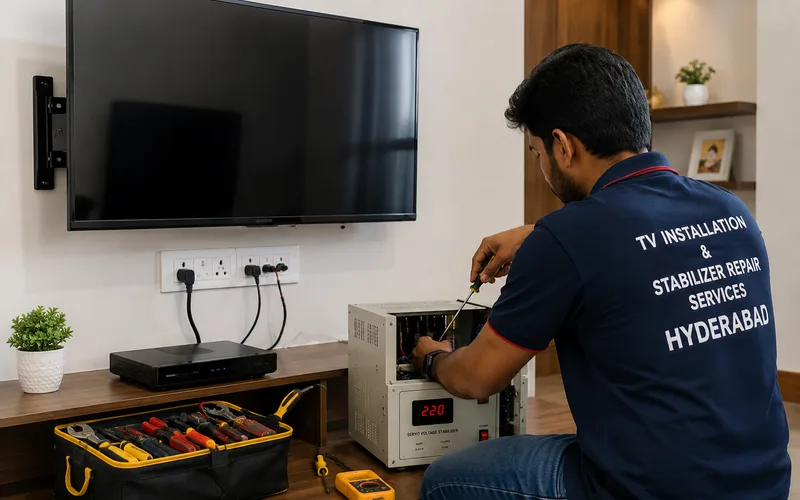
Best Smart TV Repair Shop in Hyderabad: Fixing Apps, Wi-Fi, and Firmware
Smart TVs have changed the way we watch television. Instead of using a TV only for cable channels, today’s televisions can run streaming apps, connect to Wi-Fi, install software updates, browse content and connect with other smart devices.
But when a Smart TV becomes slow, apps stop opening, Wi-Fi keeps disconnecting, firmware updates fail, or the TV freezes, finding the actual cause can be difficult.
If you are searching for “smart TV repair near me” or “smart TV repair shop near me” in Hyderabad, the problem may not always be a damaged screen or motherboard. Smart TV problems can come from software, apps, network connectivity, storage, firmware or hardware.
This guide explains the most common Smart TV problems, what you can safely check at home, and when professional Smart TV repair may be necessary.
What Is a Smart TV?
A Smart TV is essentially a television combined with computer-like software and network features.
Depending on the brand and model, it may use platforms such as:
Android TV
Google TV
LG webOS
Samsung Tizen
Brand-specific Smart TV platforms
These platforms allow the television to run applications, connect to the internet, receive software updates and provide streaming services.
Because of this additional software and hardware, Smart TVs can experience problems that traditional TVs normally would not.
For example:
Apps may crash.
Wi-Fi may disconnect.
The TV may become slow.
Storage may become full.
Software updates may fail.
The TV may freeze.
The TV may restart repeatedly.
Common Smart TV Problems
Smart TV repair requests usually fall into several categories.
Common problems include:
Smart TV apps not opening
Netflix not working
YouTube not working
TV freezing
TV becoming slow
Wi-Fi not connecting
Wi-Fi disconnecting
Bluetooth problems
Firmware update problems
TV restarting automatically
TV boot loop
Full internal storage
Remote not responding
No picture
Smart TV motherboard problems
The correct repair depends on the actual cause.
Smart TV Apps Not Working
One of the most common Smart TV complaints is:
“The TV works, but the apps don’t.”
This can happen with streaming or other applications.
Possible causes include:
App software problem
Outdated app
TV firmware problem
Network problem
Corrupted app data
Insufficient storage
Temporary TV software issue
Service-side problem with the app
Before calling a technician, check whether other apps work normally.
Example
If:
YouTube works
but
Netflix does not open
the problem may be isolated to the Netflix app or its data rather than the TV hardware.
If all apps fail, the TV software, network, storage or another system component may need further investigation.
Smart TV Apps Keep Crashing
If an app opens and immediately closes, freezes or repeatedly crashes, start with simple troubleshooting.
Try these steps:
Restart the TV.
Check whether the app has an available update.
Check for a TV software update.
If supported, force-stop or reinstall the affected app.
Check available storage.
Test another application.
Google’s current Google TV guidance recommends checking app updates and, where appropriate, force-stopping problematic apps.
Samsung’s current India support guidance similarly recommends a soft reset, software updates and reinstalling problematic apps for app-related issues.
Smart TV Is Slow or Lagging
A Smart TV that takes a long time to open menus or applications may have several possible causes.
For example:
Too many background processes
Outdated software
App problems
Limited available storage
Network-related delays
Hardware limitations
Mainboard or memory-related issues
Google’s current troubleshooting guidance for slow Google TV devices recommends restarting the device, closing background apps, updating apps and checking for system updates.
Don’t immediately assume the motherboard is faulty.
If the TV becomes slow only while using one application, the app may be the problem.
If the entire interface is consistently slow, further diagnosis may be appropriate.
Smart TV Storage Full
Smart TVs have internal storage for applications and system data.
If storage becomes limited, you may experience:
Apps failing to install
App updates failing
Slow performance
Apps crashing
Difficulty downloading new applications
Google’s Android TV documentation recommends removing unused apps to create additional storage.
Samsung also notes that insufficient storage can prevent app updates and recommends deleting unused apps when necessary.
What can you do?
Remove applications you no longer use.
For Android TV, Google provides an option to uninstall downloaded applications from the Apps settings.
For Samsung TVs, unused applications can similarly be removed where the model permits it.
If the TV continues showing storage-related errors despite having available space, professional diagnosis may be needed.
Smart TV Wi-Fi Not Connecting
Wi-Fi problems are another major reason people search for smart TV repair near me.
But a Wi-Fi problem does not automatically mean that the TV’s Wi-Fi hardware has failed.
First check:
Is Wi-Fi enabled?
Is the correct network selected?
Does another device connect to the same router?
Is the TV close enough to the router?
Does the TV connect to another network?
Is the router working normally?
Google’s current Google TV troubleshooting guidance recommends checking the Wi-Fi connection, router position and network band, and suggests using a wired connection where available for troubleshooting.
Smart TV Wi-Fi Keeps Disconnecting
If the TV connects successfully but repeatedly loses Wi-Fi, several possibilities exist.
Network-related causes
Weak Wi-Fi signal
Router problems
Network congestion
Incorrect network settings
Router compatibility/configuration issues
TV-related causes
Software problem
Firmware issue
Wi-Fi module problem
Mainboard-related fault
A simple test
Connect another device to the same Wi-Fi network from approximately the same location.
If other devices also lose connection, investigate the network first.
If the TV is the only device experiencing the problem, further TV troubleshooting may be useful.
Smart TV Wi-Fi Works on Phone but Not on TV
This situation is common.
Your phone may connect perfectly to the router while the TV refuses to connect.
Before assuming the TV’s Wi-Fi module has failed:
Restart the router.
Restart the TV.
Forget the Wi-Fi network on the TV if the option is available.
Reconnect using the correct password.
Check whether the TV detects other networks.
Try another network or hotspot where practical.
If the TV cannot detect available networks at all, or consistently fails with known-good networks, professional diagnosis may be appropriate.
Smart TV Firmware Problems
Firmware is the software that controls important functions of the television.
Manufacturers release firmware updates to address bugs, improve compatibility, add features or improve security.
For example, Samsung’s current India guidance recommends checking for software updates when a TV has performance issues, unexpected behaviour or app-related problems.
LG also provides model-specific firmware update procedures for its TVs, including current webOS models.
Firmware problems can appear as:
TV freezing
Apps crashing
Slow menus
Unexpected restarts
Connectivity problems
Update failures
Startup problems
However, not every software problem requires professional repair.
Smart TV Firmware Update Failed
A failed update can be frustrating because the TV may behave differently after an incomplete or unsuccessful update.
Possible symptoms can include:
TV stuck during startup
Update repeatedly requested
Apps no longer working correctly
TV restarting
Slow operation
TV stuck on the logo
Important:
Do not repeatedly interrupt a firmware update by switching off the TV unless the manufacturer’s instructions specifically tell you to do so.
Samsung’s current support information specifically warns users not to turn off the TV during a software update.
If the TV remains stuck after a failed update, use the manufacturer’s model-specific recovery/support procedure or seek professional diagnosis.
Android TV and Google TV Problems
Android TV and Google TV can experience issues involving:
Apps
Wi-Fi
Storage
System updates
Performance
Account settings
Booting
Google’s current support documentation recommends checking Wi-Fi, system updates and restarting the device when troubleshooting video or operational problems.
For an unresponsive Google TV device, Google recommends disconnecting power for one minute and restarting the device.
Android TV storage problems
If storage is nearly full, uninstalling unused applications can create additional space. Google also documents USB storage options for supported Android TV devices, although compatibility varies by television.
LG webOS Smart TV Problems
LG Smart TVs use webOS, and common issues can involve:
Apps
Wi-Fi
Firmware
Slow performance
TV freezing
Remote connectivity
Startup problems
LG provides model-specific troubleshooting and software-update instructions because menu paths and features can differ by TV generation.
If an LG TV has an app problem, network problem or software issue, first use the TV’s built-in troubleshooting options before assuming that hardware repair is necessary.
Samsung Tizen Smart TV Problems
Samsung Smart TVs use Samsung’s Tizen-based software platform.
Problems may involve:
Apps
Smart Hub
Wi-Fi
Software updates
Storage
Slow performance
Account/service connectivity
Samsung’s current India support guidance recommends a soft reset, software updates and app reinstall when apps are not working correctly.
Samsung also notes that app features and available menu options can vary by model, software version and region.
Smart TV Keeps Restarting
A TV that repeatedly restarts can have either software or hardware causes.
Possible causes include:
Firmware problem
App/software crash
Power supply instability
Mainboard problem
Internal storage problem
Overheating
Other hardware faults
First check:
Does it restart only inside one app?
Does it restart on the home screen?
Does it restart immediately after turning on?
Does it restart after several minutes?
Does it restart when connected to a particular HDMI device?
The answers can help narrow the problem.
Smart TV Stuck on Logo
If the TV remains on:
Samsung logo
LG logo
Android logo
Google TV logo
OnePlus logo
Mi logo
or another startup screen, the problem may involve software, firmware, internal storage, power or the mainboard.
A stuck logo is therefore not automatically a motherboard failure.
Start with the manufacturer’s recommended restart/recovery steps.
If the TV repeatedly returns to the same logo and cannot complete startup, professional diagnosis may be necessary.
Smart TV Boot Loop
A boot loop means the TV repeatedly goes through a cycle such as:
Power ON
↓
Brand Logo
↓
Loading
↓
Restart
↓
Brand Logo
A boot loop can have several causes.
Possible areas include:
Firmware
Software
Internal storage
Power supply
Mainboard
This is why replacing a motherboard without diagnosis is not recommended.
Smart TV No Picture but Apps and Sound Work
If you can hear sound but the screen is black, the problem may not be related to Smart TV software.
Possible causes can include:
LED backlight
LED driver
Power supply
Mainboard
T-Con/control circuitry
Display panel
The technician needs to determine whether the TV is generating an image but failing to illuminate the screen, or whether there is a problem in the video/display path.
This type of problem should be separated from ordinary app or Wi-Fi troubleshooting.
Smart TV Remote Not Working
A Smart TV remote problem can have several causes.
Check:
Batteries
Remote pairing
Bluetooth connection
Infrared reception where applicable
TV software
Remote hardware
For Bluetooth remotes, a factory reset can sometimes require the remote to be paired again.
If a compatible replacement remote works normally, the original remote may be the issue.
If multiple compatible remotes fail, the TV may need further diagnosis.
When Is Smart TV Repair Actually Necessary?
You may not need a technician for every Smart TV problem.
Try home troubleshooting when:
One app isn’t working.
Wi-Fi has temporarily disconnected.
The TV is slightly slow.
An app needs updating.
The TV needs a restart.
Storage is full because of unused apps.
Consider professional repair when:
The TV repeatedly freezes.
It constantly restarts.
It cannot complete startup.
Firmware recovery fails.
Wi-Fi hardware appears to be malfunctioning.
Multiple functions fail simultaneously.
The TV has no picture.
The TV has sound but no picture.
The TV has motherboard-related symptoms.
Basic troubleshooting does not solve the problem.
Smart TV Software Problem vs Hardware Problem
This distinction can save you money.
| Symptom | Possible Software Cause | Possible Hardware Cause |
|---|---|---|
| One app crashes | ✓ | — |
| All apps fail | ✓ | Possible |
| TV is slow | ✓ | Possible |
| Wi-Fi disconnects | ✓ | Possible |
| TV stuck on logo | ✓ | ✓ |
| Boot loop | ✓ | ✓ |
| Random restart | ✓ | ✓ |
| No picture | — | ✓ |
| Sound but no picture | — | ✓ |
| HDMI failure | ✓ | ✓ |
| Remote pairing problem | ✓ | ✓ |
These are possible causes, not automatic diagnoses.
Why You Shouldn’t Immediately Replace the Motherboard
A Smart TV may show several symptoms that look like a motherboard problem.
For example:
“Netflix stopped working.”
That could be an app issue.
“Wi-Fi stopped connecting.”
That could be the router or network configuration.
“TV is slow.”
That could be software, storage or hardware.
“TV is stuck on logo.”
That could be firmware, storage, power or mainboard-related.
Therefore, a professional repair provider should diagnose the actual problem before recommending a costly board replacement.
How a Smart TV Technician Diagnoses the Problem
A proper diagnosis usually starts with the simplest possibilities.
Step 1: Identify the TV
The technician checks:
Brand
Model
Screen size
Operating platform
Step 2: Reproduce the problem
The exact behaviour is observed.
Step 3: Check software
The technician checks whether:
Software is current
Apps are affected
Reset/recovery is possible
The TV completes startup
Step 4: Check connectivity
For Wi-Fi problems, the network connection and TV behaviour are tested.
Step 5: Check hardware
If the problem persists, the relevant hardware may need inspection.
Depending on the symptoms, this can include:
Power supply
Mainboard
Wi-Fi/Bluetooth circuitry
Backlight
T-Con/control circuitry
Display panel
Internal connections
Step 6: Recommend the appropriate repair
The goal should be to repair the actual fault—not replace parts unnecessarily.
Best Smart TV Repair Shop in Hyderabad
If you’re searching for the best Smart TV repair shop near me in Hyderabad, Vee Techno Electronics provides repair services for Smart TVs from multiple brands.
Common Smart TV problems we can diagnose include:
Apps not working
Netflix problems
YouTube problems
Wi-Fi issues
Bluetooth problems
Firmware problems
TV stuck on logo
Boot loops
Slow Smart TV
Storage-related issues
TV restarting
No picture
Sound but no picture
Motherboard problems
T-Con/display problems
Backlight problems
Remote problems
We service Smart TVs across Hyderabad, subject to service-area availability.
Before contacting a technician, keep the following information ready:
Brand: ______
Model: ______
Screen size: ______
Problem: ______
When did it start? ______
Location: Hyderabad
A short video of the problem can also help explain the symptom accurately.
Smart TV Repair Near Me in Hyderabad
If you searched for “smart TV repair near me”, don’t choose a repair provider based only on the lowest advertised price.
Before approving a repair, ask:
1. What is the actual fault?
Don’t settle for:
“Motherboard problem.”
Ask which part was tested and what symptom confirms the diagnosis.
2. Is repair possible?
A board may sometimes be repairable rather than requiring complete replacement.
3. Is the replacement part compatible?
The exact model and board number matter.
4. What is included in the quotation?
Ask whether the amount includes:
Part
Labour
Installation
Testing
Service warranty
5. Is the TV under manufacturer warranty?
If it is, check the manufacturer’s official service options first.
Why Choose Professional Smart TV Repair?
Smart TVs combine software and electronics.
A good repair process should therefore consider both.
A technician shouldn’t immediately replace a motherboard because:
An app doesn’t open.
Wi-Fi isn’t connecting.
The TV is slow.
The TV freezes once.
A software update failed.
The problem should first be narrowed down.
Likewise, persistent hardware symptoms should not be treated as software problems indefinitely.
The objective is to identify the actual cause and recommend the most practical repair.
Smart TV Repair for Major Brands
Vee Techno Electronics can diagnose Smart TV problems across major brands, including:
Samsung
LG
Sony
Mi
OnePlus
Realme
Toshiba
Panasonic
Philips
Haier
TCL
Vu
Other compatible Smart TV brands
The exact repair method depends on the model and fault.
For brand-specific problems, you can also refer to our dedicated repair pages for more detailed information.
Frequently Asked Questions
What is the most common Smart TV problem?
Common issues include app problems, Wi-Fi connectivity, slow performance, software/firmware problems, freezing and startup problems. Hardware faults can also cause no-picture, power and display symptoms.
Why is my Smart TV connected to Wi-Fi but apps aren’t working?
The TV may be connected to the router but still have an issue with internet access, DNS/network configuration, an individual app or the TV software. Test another app and check the network connection before assuming hardware failure.
Why is my Smart TV so slow?
Possible causes include outdated software, background processes, app problems, limited storage, network delays or hardware limitations. Google recommends restarting, closing background apps, updating apps and checking system updates for slow Google TV devices.
Can full storage make a Smart TV slow?
Limited storage can interfere with app installation and updates. Android TV documentation recommends removing unused apps to create additional space, and Samsung notes that insufficient storage can prevent app updates.
Why does my Smart TV keep restarting?
Possible causes include software, firmware, power, storage, overheating or motherboard-related problems. The exact cause should be diagnosed rather than assuming the motherboard has failed.
Why is my Smart TV stuck on the logo?
A TV stuck on its startup logo can have software, firmware, storage, power or hardware-related causes. If restarting and manufacturer-supported troubleshooting do not resolve it, professional diagnosis may be necessary.
Should I factory reset my Smart TV?
A factory reset can help with certain software problems, but it should generally be considered after simpler troubleshooting. Google warns that a factory reset erases data and recommends trying other troubleshooting steps first.
Why does my Smart TV Wi-Fi keep disconnecting?
Possible causes include weak signal, router/network problems, incorrect settings, software issues or TV Wi-Fi hardware. Test the network with another device and, where practical, test the TV on another network.
Can a Smart TV motherboard be repaired?
In some cases, a technician may be able to repair a board-level fault. In other cases, replacement may be more practical. The exact option depends on the model, board and fault.
Is Smart TV repair expensive?
There is no single Smart TV repair price. The cost depends on whether the problem involves software, Wi-Fi, power, backlight, T-Con, motherboard, storage or the display panel.
Should I repair or replace my Smart TV?
Consider the TV’s age, panel condition, fault, parts availability and total repair cost. A relatively new TV with a repairable board or backlight problem may be worth repairing, while an older TV with multiple major failures may not be economical to repair.
Final Takeaway
A Smart TV is more than a screen. It combines display hardware, processing hardware, software, storage and network connectivity.
That means a problem such as:
App not opening
doesn’t necessarily mean a motherboard fault.
Wi-Fi not connecting
doesn’t necessarily mean the Wi-Fi module is damaged.
TV becoming slow
doesn’t automatically mean the TV is failing.
And:
TV stuck on logo
doesn’t automatically mean the motherboard needs replacement.
Start with basic troubleshooting:
Restart → check apps → check storage → check Wi-Fi → check software updates → test different inputs → diagnose hardware if the problem persists.
For customers searching for Smart TV repair near me or a Smart TV repair shop near me in Hyderabad, Vee Techno Electronics can diagnose Smart TV software, connectivity, power, display and hardware-related problems and recommend the appropriate repair based on the actual fault.